Draftplan user guide
Draftplan is a Gantt chart for Jira Cloud with critical path, dependencies, baseline and auto scheduling. Every move you make is a draft. Your Jira issues change only after you check the preview and press Apply.
- Getting started
- Draft and preview
- Dependencies
- Critical path
- Baseline
- Auto scheduling
- Undo
- Export and import
- Permissions and scopes
- FAQ
- Support
Getting started
- Install Draftplan from the Atlassian Marketplace (Jira Cloud, company-managed and team-managed spaces). It runs on Atlassian Forge, so there is nothing else to set up.
- Open a project and choose Draftplan Gantt Chart in the project sidebar.
- The chart shows one row per issue. Bars come from the start and due dates of your issues. Switch the time scale between day, week and month.
- Issues without dates have no bar yet. Set dates by dragging in the chart, or in Jira as usual.
The hierarchy from epic to task to subtask is shown as a tree. Parents have summary bars; milestones, phases and gates are supported.
Draft and preview
- Drag or resize a bar. The change is stored in your draft only. Jira is not touched.
- Your draft is saved automatically on the server, per user and project. You can close the browser and continue later.
- Open the preview. It lists every issue with its old and new dates.
- Press Apply to write the dates to Jira. Problems are reported per issue, so nothing is left half done without you knowing.
Dependencies
Draftplan supports four link types: finish to start, start to start, finish to finish and start to finish. Each link can have a lag in working days; a negative value is a lead. Link type and lag are kept in Draftplan app storage because Jira issue links have no such field. Conflicting dates are shown as warnings.
Critical path
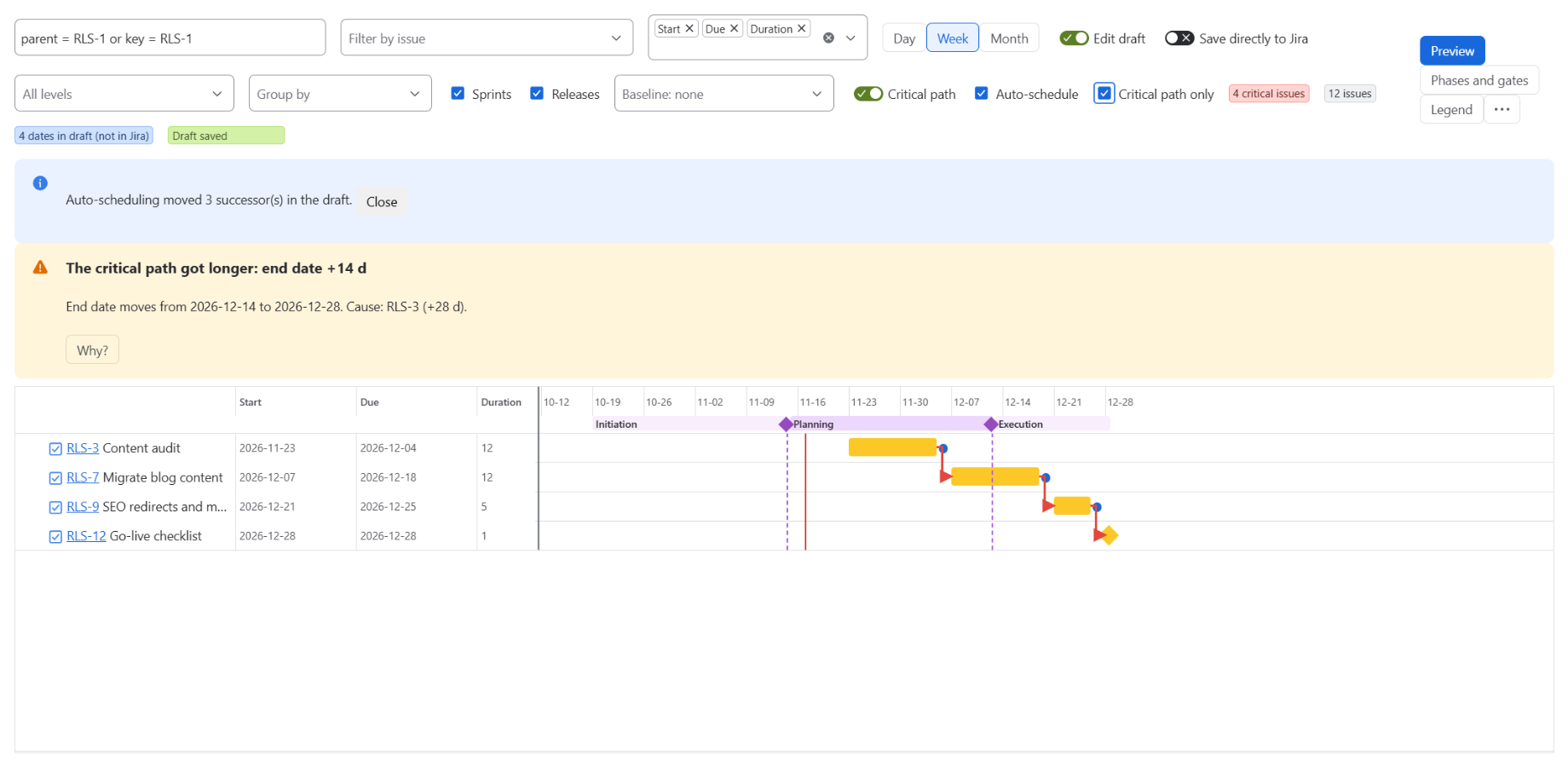
The critical path is calculated in working days from the dates and links in your plan and shown in red. It marks the tasks that decide your end date.
- Use the Critical path only filter to hide everything else.
- Open Why is this late? to see the driving chain and the slack per link.
Baseline
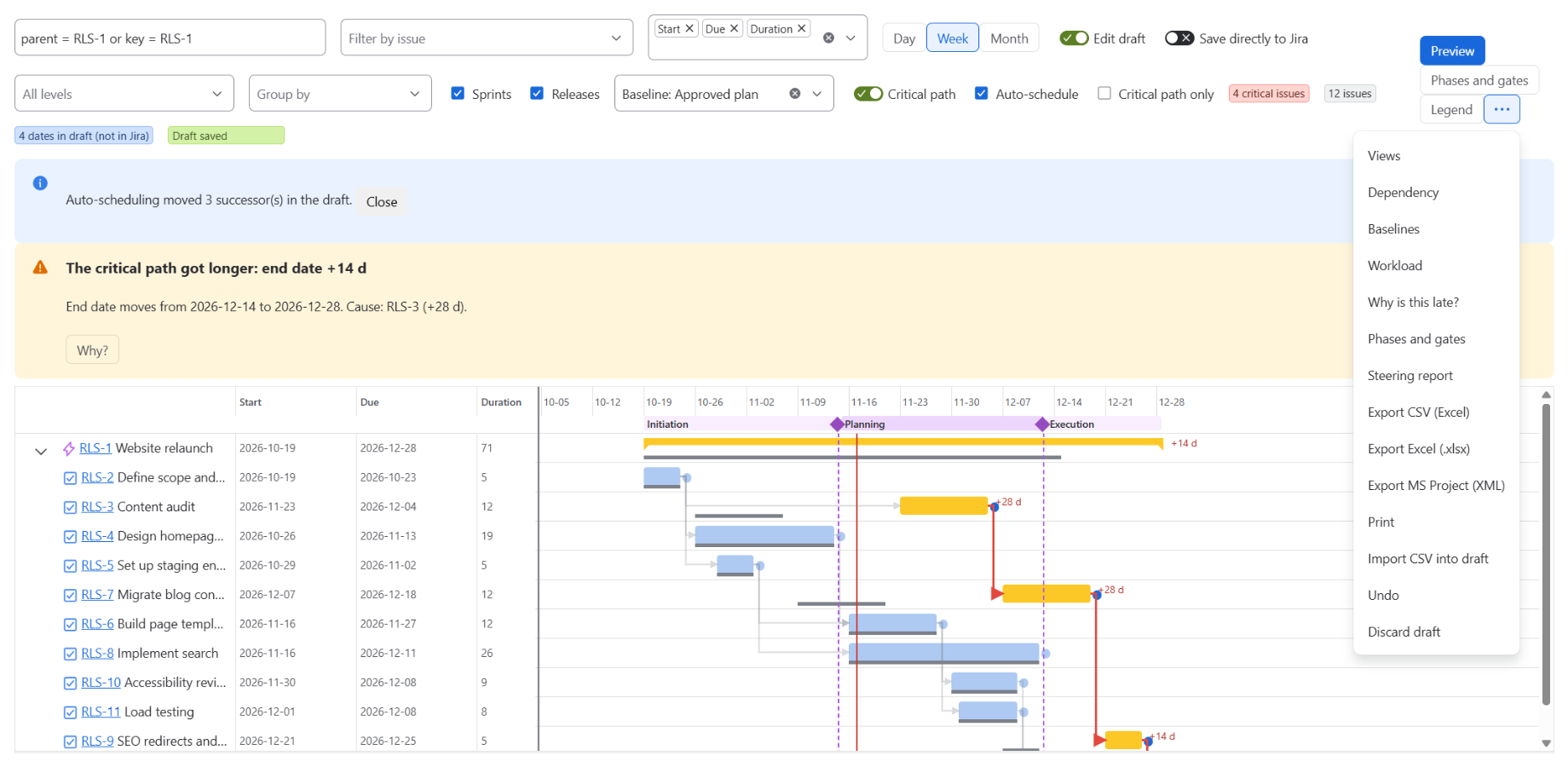
Save the current plan as a baseline. Draftplan then draws a thin grey bar under each current bar and labels the slip as "+N d" or "-N d".
Auto scheduling
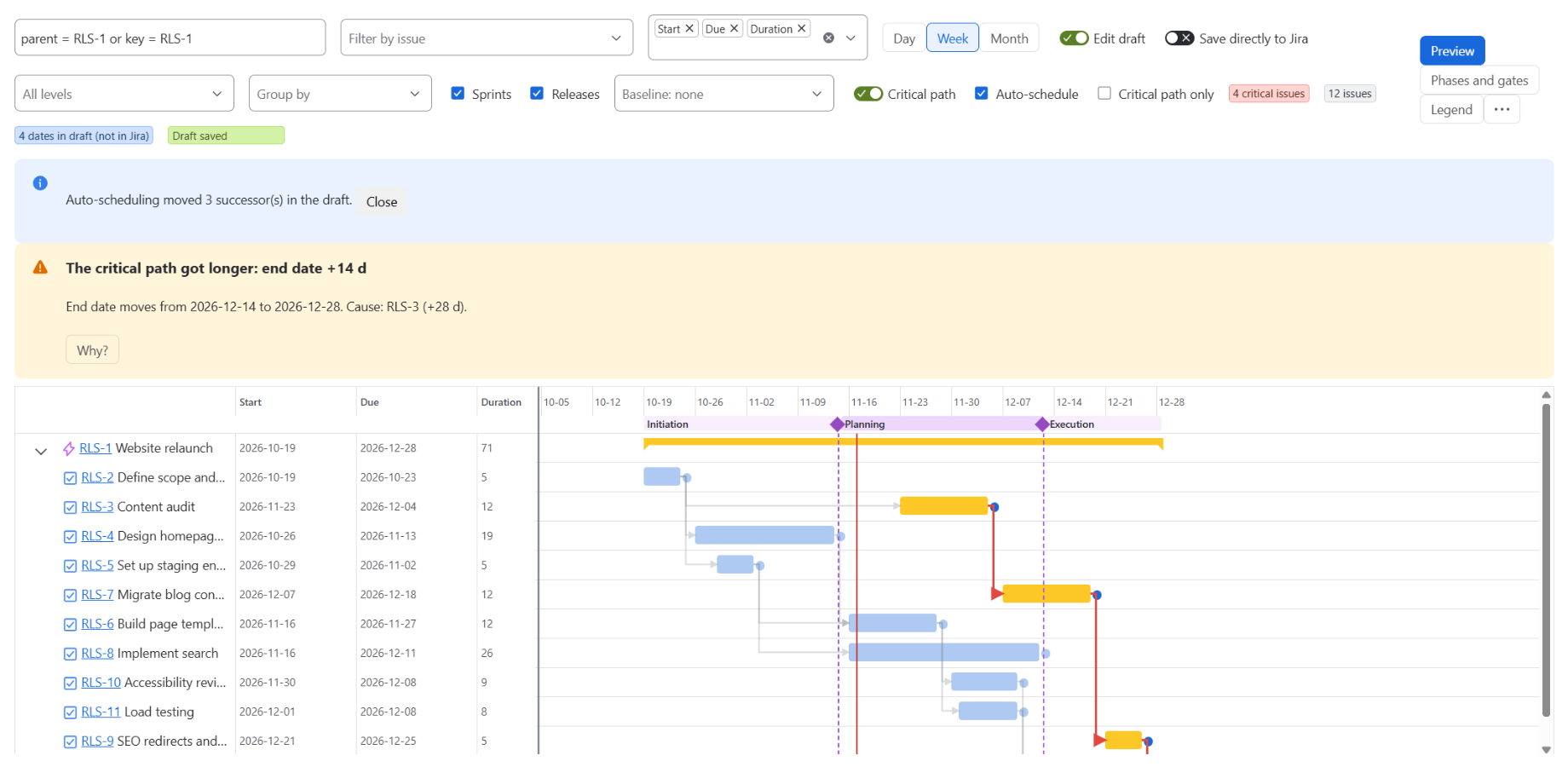
Switch auto scheduling on in the draft. When you move a task, the successors that would start too early move with it. It only moves successors later, never earlier, and tasks you moved by hand stay where you put them. Nothing is written to Jira until you press Apply.
Undo
You can undo a whole Apply run or single issues. If an issue changed in Jira after you applied, Draftplan warns you instead of overwriting the newer change.
Export and import
- Export to Excel (.xlsx) or CSV.
- Export to MS Project (XML).
- Import a CSV into the draft.
- Print the chart.
You can also save views and share them with your team, and create a steering report.
Permissions and scopes
Draftplan uses the permissions of the signed-in user: you see and change only issues that your Jira permissions allow. It has no external servers and makes no calls to outside services. Stored data is limited to your drafts, views, baselines, templates and link settings, keyed by project and Jira account ID, in Forge hosted storage.
| Scope | Why Draftplan needs it |
|---|---|
read:jira-work | Read issues, projects and issue links to draw the chart and compute the critical path. |
write:jira-work | Write changed start and due dates and issue links, only after you press Apply (and when you undo). |
read:jira-user | Search assignable people and show assignee names and avatars on the bars. |
storage:app | Store drafts, saved views, baselines and templates in Forge hosted storage. |
report:personal-data | Weekly Personal Data Reporting of stored account IDs; data of closed accounts is erased. |
Details: Privacy policy and Security.
FAQ
Does moving a bar change my Jira issues?
No. Only Apply writes to Jira, after you have seen the preview.
Can I get my old dates back?
Yes. Use Undo for the whole run or for single issues. If someone changed an issue in the meantime, you get a warning.
What does it cost?
Draftplan is free for up to 10 users. Larger teams pay per user through the Atlassian Marketplace. The app shows "License inactive" and does not write to Jira if the licence is not active.
Where is my data stored?
On Atlassian infrastructure (Forge hosted storage). Nothing leaves Atlassian.
Is resource planning included?
Not in this version. Workload is shown per assignee from your dates. Scenarios are not included either.
Support
Questions or problems: support@zenthas.com or zenthas.com/support. Security reports: security@zenthas.com.